1. Export an Audition marker file from Notetracks Pro
To export markers and comments from Notetracks Pro, click the Download button in your active session and select "NoteTracks.com > Audition Markers (.csv)".
2. Use the "Конвертер маркерів" to convert the Audition marker file into a CSV file
Open the free Конвертер маркерів, select "Audition" and set "convert" to "CSV for Google Sheets". Generate and download the file. Якщо у вас виникли проблеми з конвертацією файлу, ви можете звернутися до безкоштовної служби підтримки.
3. Import the CSV file into Google Sheets
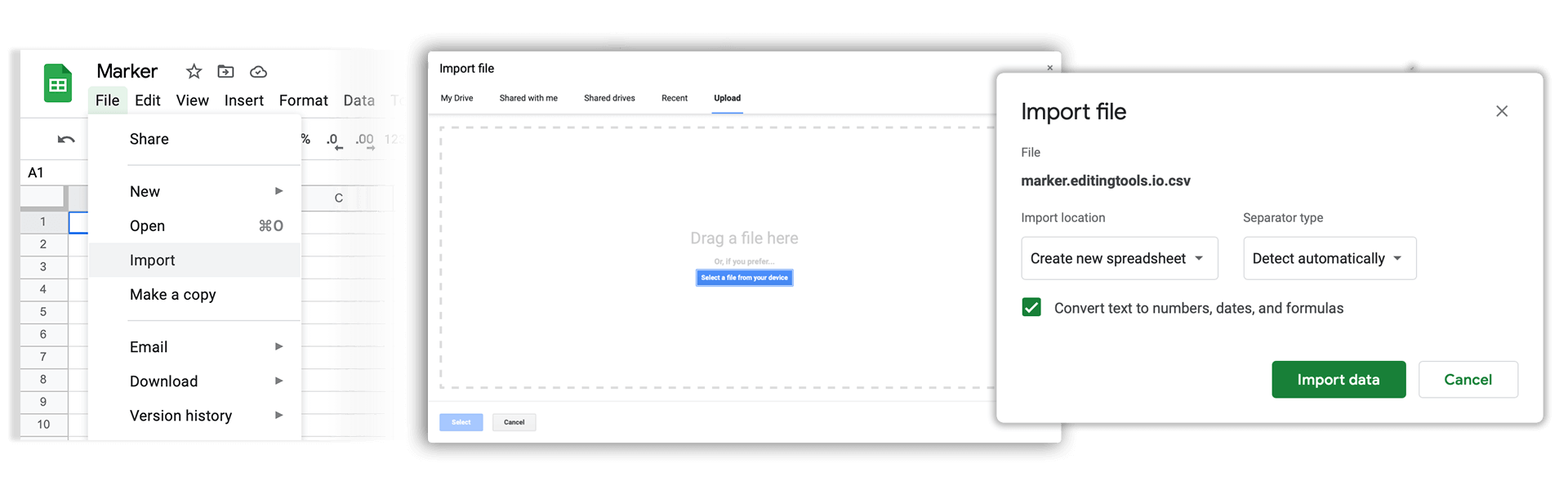
Open Google Sheets and go to "File -> Import". Upload the generated CSV file and press "Import Data" to generate the Sheet with all markers.
🚀 Готово
Поки що все! Якщо цей посібник був корисним, поділіться ним, щоб підтримати нас. Якщо у вас є пропозиції, як покращити робочий процес, повідомте нам!