1. Export a TXT marker file from Adobe Prelude Live Logger
In the Adobe Prelude Live Logger app go to export and save the TXT file.
2. Use the "Конвертер маркерів" to convert the TXT marker file into a CSV file
Open the free Конвертер маркерів, select "Adobe Prelude Live Logger > Marker (.txt)" and set "convert" to "CSV for Google Sheets". Generate and download the file. Якщо у вас виникли проблеми з конвертацією файлу, ви можете звернутися до безкоштовної служби підтримки.
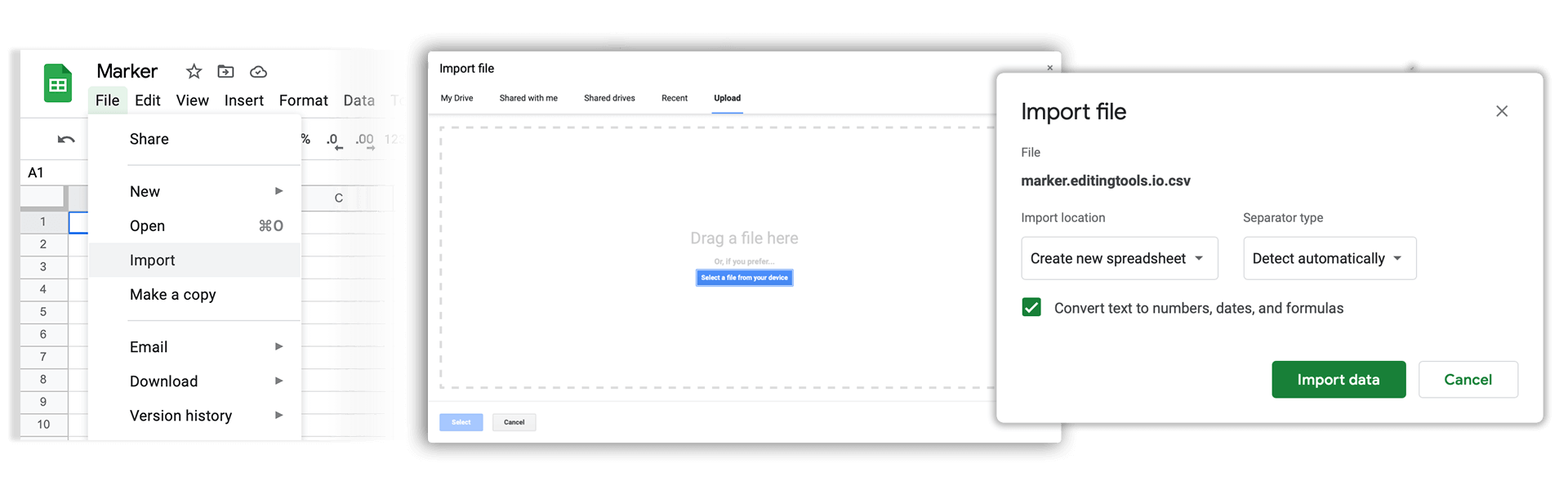
3. Import the CSV file into Google Sheets
Open Google Sheets and go to "File -> Import". Upload the generated CSV file and press "Import Data" to generate the Sheet with all markers.
🚀 Готово
Поки що все! Якщо цей посібник був корисним, поділіться ним, щоб підтримати нас. Якщо у вас є пропозиції, як покращити робочий процес, повідомте нам!